
Care plan, Care tracker, and medical diary
Plan your care, receive reminders, record what happened, and review the diary on your phone or a computer.
Care plan → notification → Care tracker → medical diary
1. Build your medication plan
Find and verify the medication
- Open Medication search and search by commercial name or active ingredient.
- Open the medication and verify the active ingredients, strength, dosage form, and route.
- If the family contains several products or strengths, use the selectors at the top of the details page.
- Choose Add a prescription. Add medication in My medications and Care plan opens the same search.
Enter the prescription instructions
- Prescribed amount: the quantity expected for each occurrence, such as 1 tablet or 1 injection.
- Regular dosing: start date, optional end date or number of days, frequency or interval, weekdays, and one or more times.
- As needed: use only when the prescription has no fixed repeating schedule.
- One-time dose: when neither regular dosing nor as needed is selected, choose one date and one time.
- Remark and cropped prescription: keep patient-specific instructions or the relevant cropped image when useful.
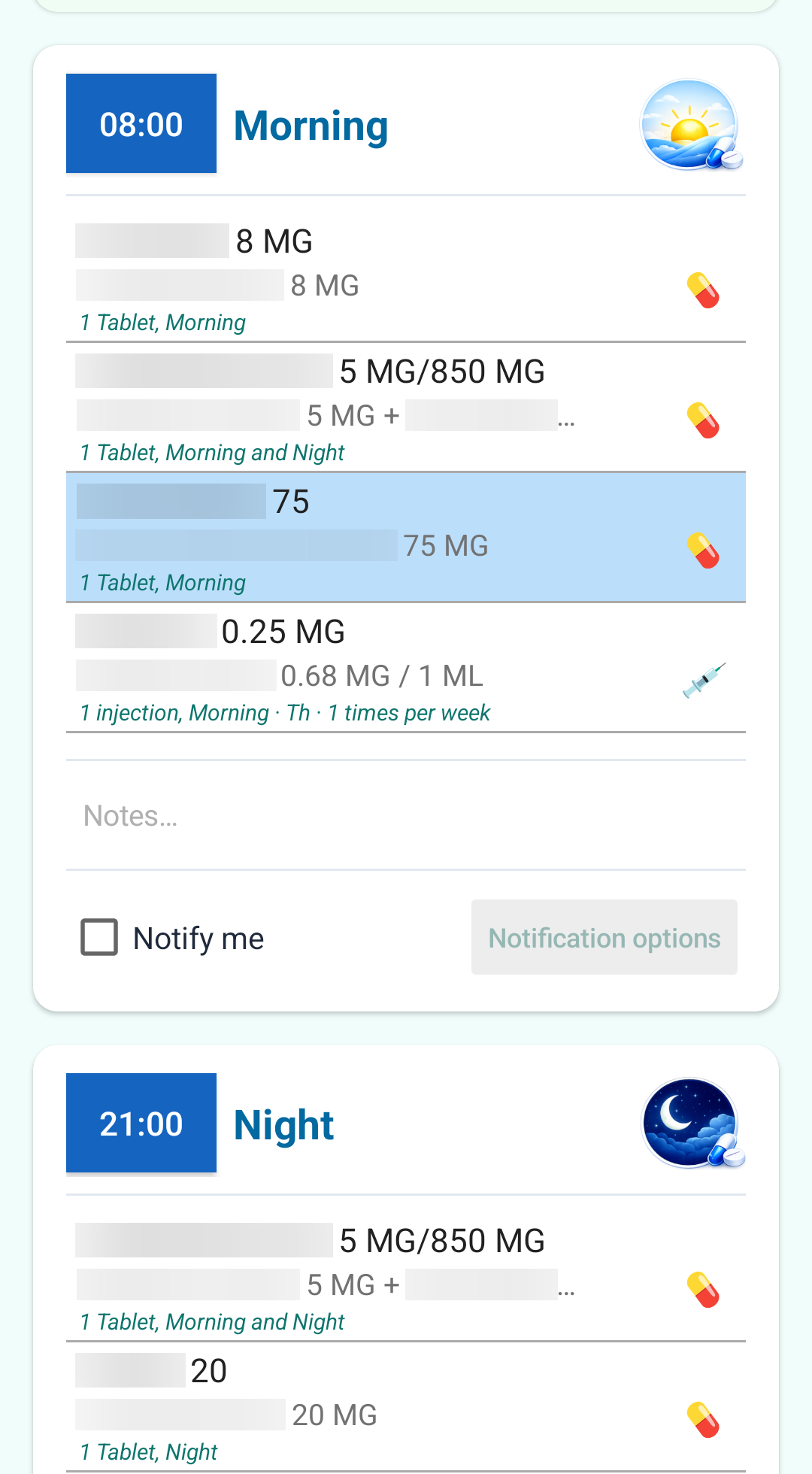
Review or change a saved prescription
Open My medications or Care plan and tap the medication. Editable prescriptions offer Edit and Delete. Deletion asks for confirmation and removes future occurrences and notifications.
A prescription opened from Care tracker is intentionally read-only. Edit it from My medications or Care plan.
2. Add care events
Care events are optional Medil AI+ items for appointments and care-related tasks such as physiotherapy, a blood test, imaging, or a dressing change.
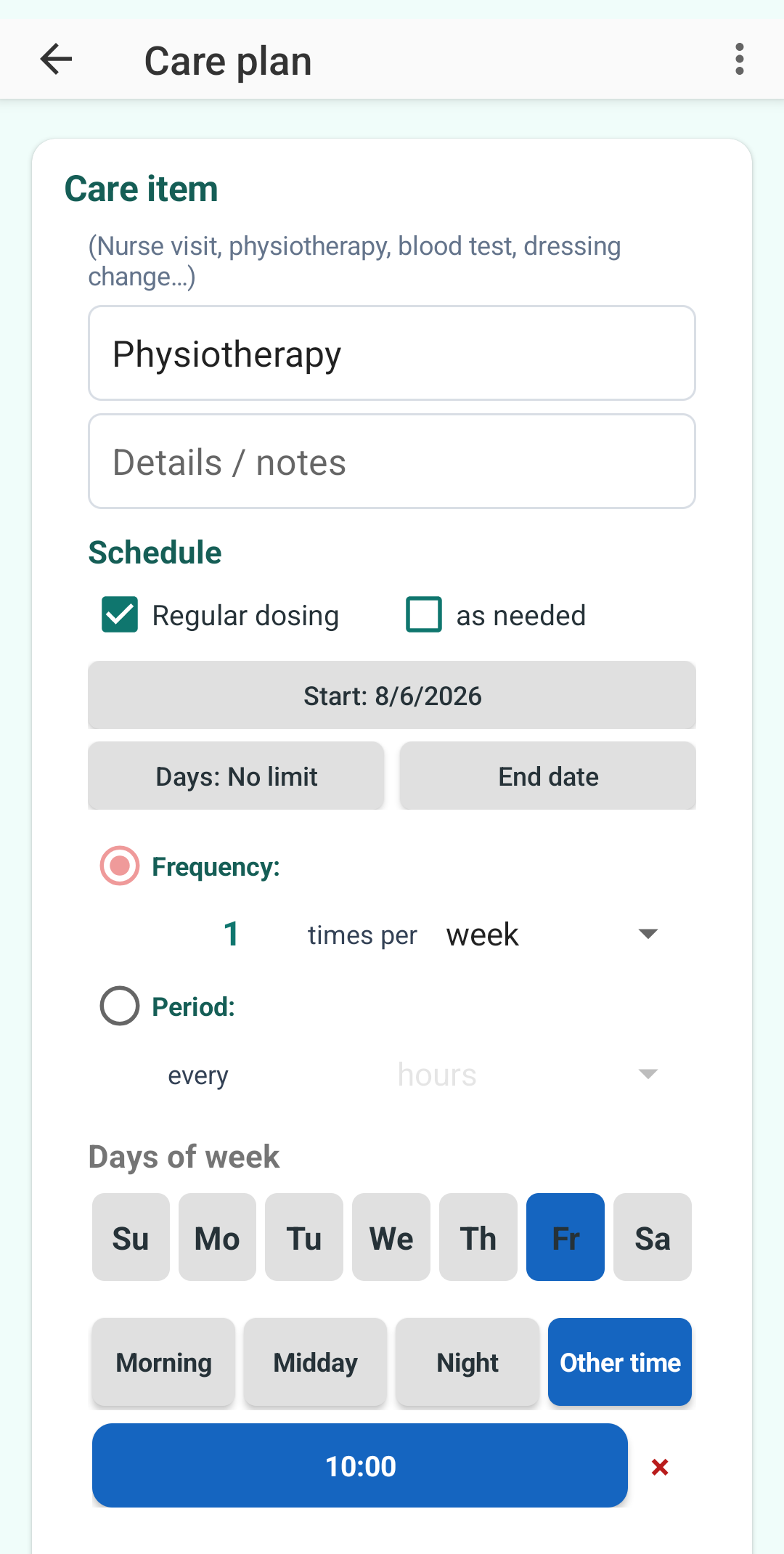
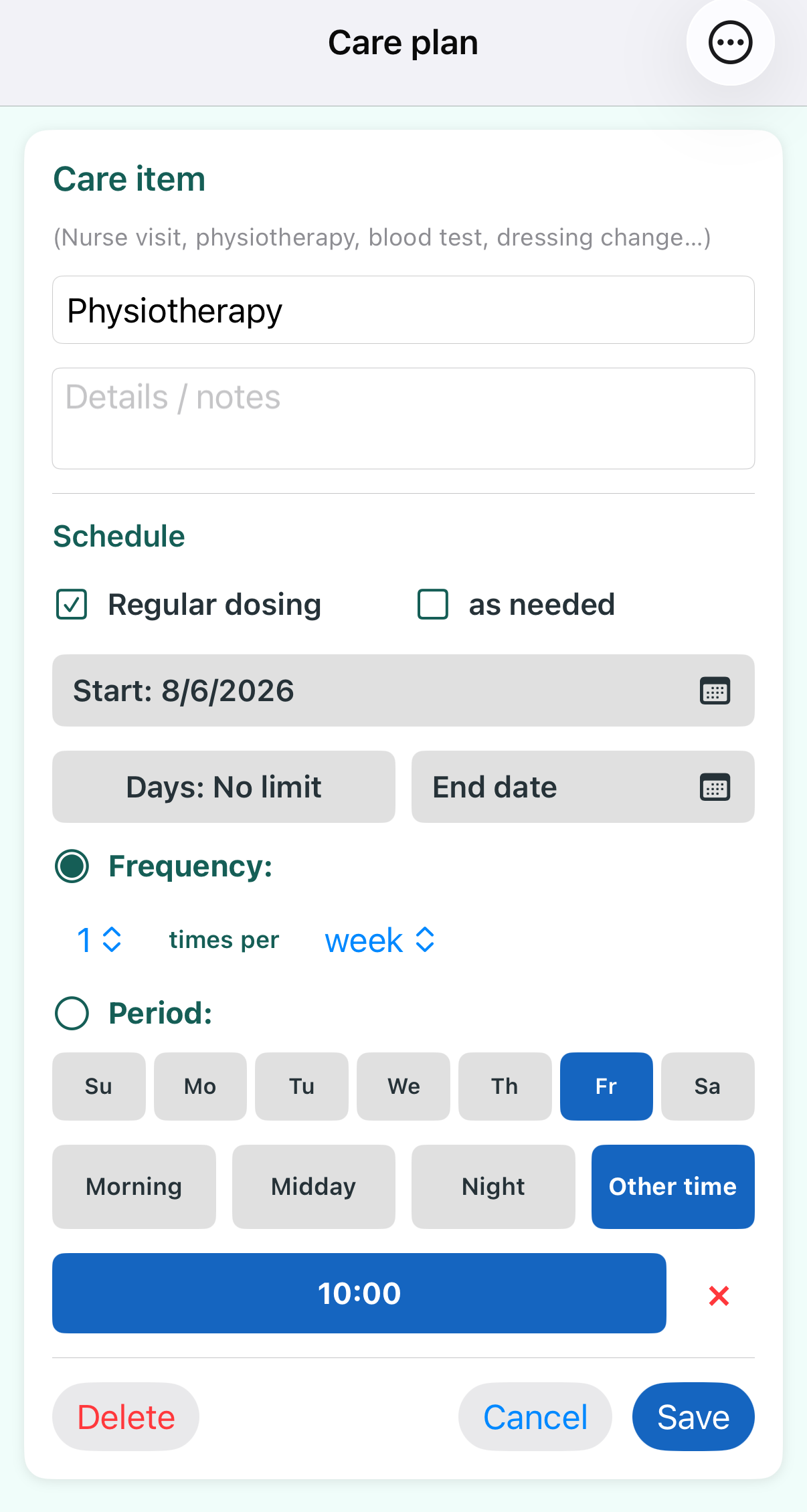
Repeating event
- Choose Add care item and enter the event name and optional details.
- Select Regular dosing and choose the start date. Add an end date or number of days only when the series is limited.
- Choose Frequency for occurrences per day, week, or month, or Period for every specified number of hours, days, weeks, or months.
- Select all applicable weekdays and times, then save.
One-time event
Leave Regular dosing off, then choose one date and one time. The time button can be tapped again to change it.
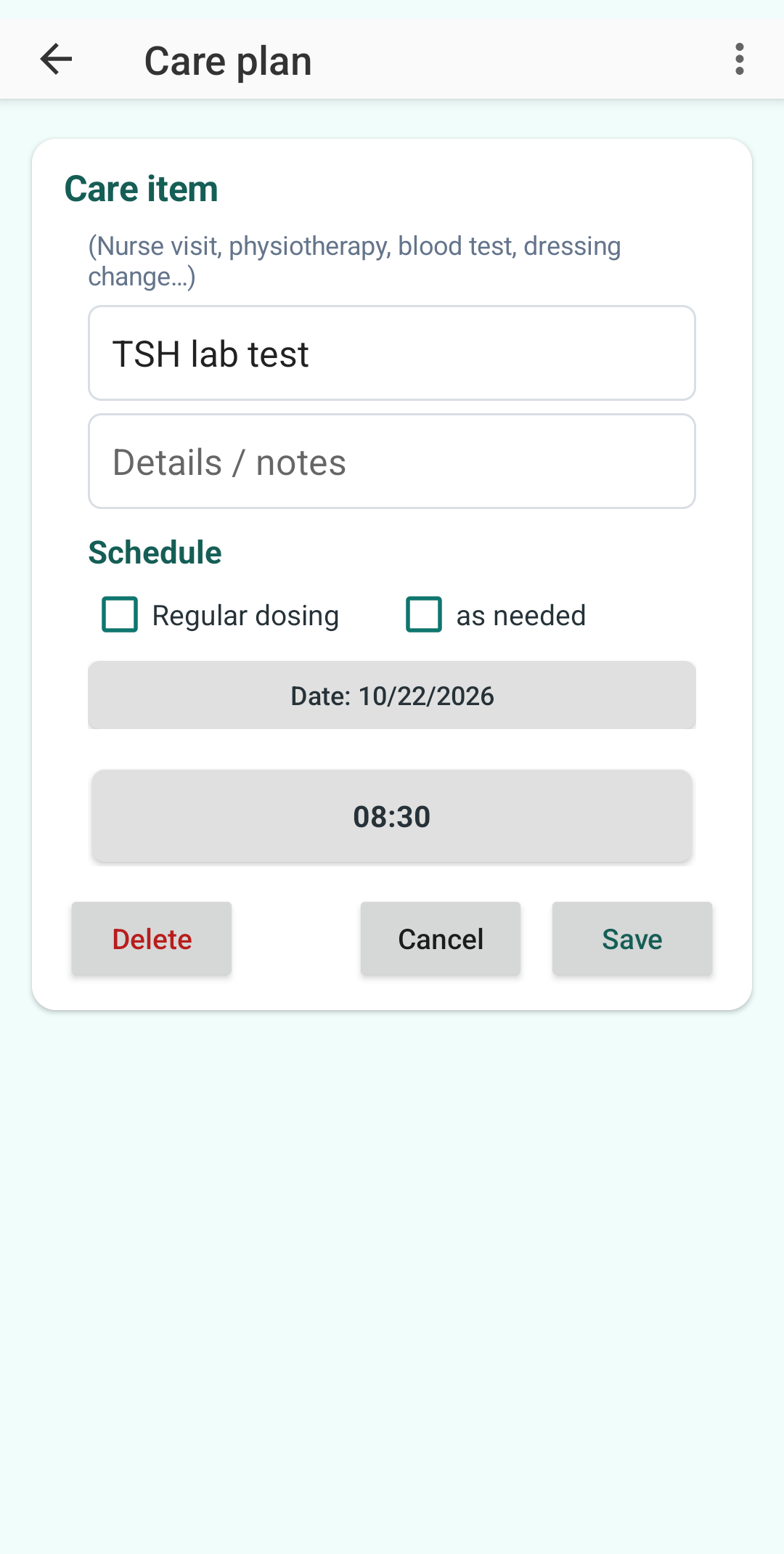
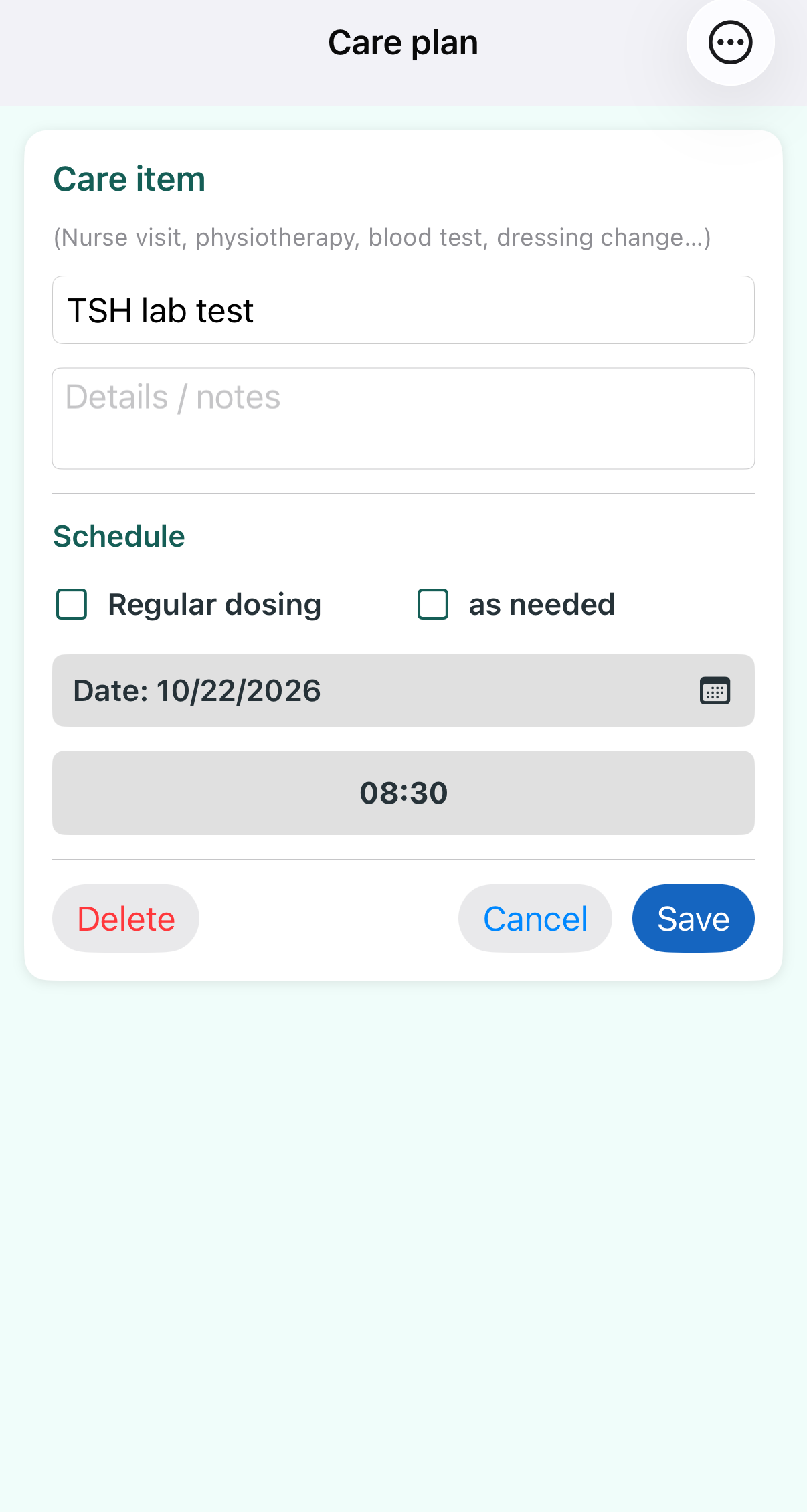
Tap a saved care item in Care plan to edit it with the same controls. Deletion requires confirmation and removes its future occurrences and notifications.
3. Configure notifications
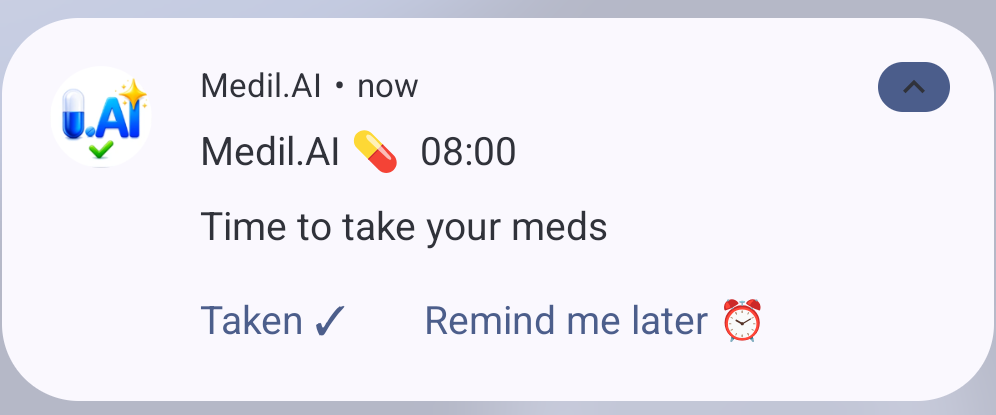
Care plan keeps default notification options for newly enabled time slots. The default is the Medil tone with three event-time reminders at 20-minute intervals.
- Sound choices: no sound, Medil tone, voice message, an existing sound file, or a personal recording.
- Android also offers a Medil vibration pattern. iPhone vibration is controlled by iOS.
- Before event: add reminders in minutes, hours, or days before a care event.
- At event time: choose the number of repeated reminders and their interval.
Enable one time slot
- Turn on Notify me in the relevant Morning, Midday, Night, or custom-time section.
- Medil copies the current defaults to that time slot and confirms the copy.
- Open Notification options for that time slot if it needs different settings.
4. Record what happened in Care tracker
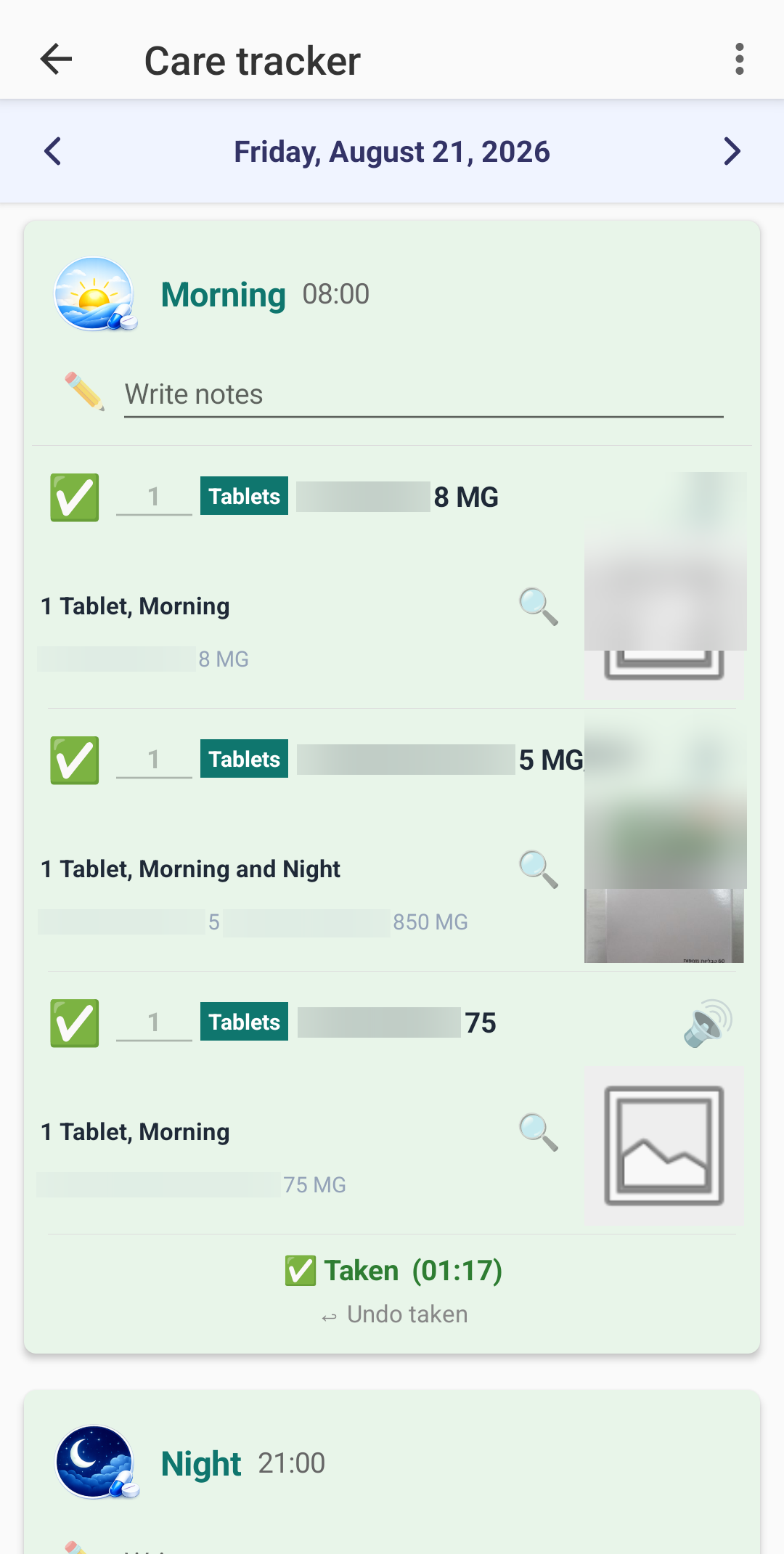
Open Care tracker from the home screen or tap a reminder. Use the date arrows to review the intended day.
Medication doses
- Each row shows the prescribed product and strength, route icon, prescribed amount, and personal instructions.
- The quantity control records the amount actually taken; it is separate from the prescribed amount.
- Confirm one medication with its check control, or confirm a whole time slot with Record all medications taken.
- After recording, use the red cancel control to reverse the record. Past dates require confirmation.
- Completion time is stored per medication only when recorded on the same date as the dose.
Care events
- Use the check to mark Complete and the red X to mark Not performed.
- Tap the active status control to return the event to incomplete.
- Add a remark when it helps explain what happened.
- Changing a past or future occurrence requires confirmation and suppresses reminders only for that occurrence.
5. Review the medical diary
The medical diary combines medication status, care events, and health measurements. It is generated from the same plan used by Care tracker.
- Pill means oral medication, syringe means injection, and patch covers other routes when no more specific icon applies.
- Today and future dates show how many medications are scheduled.
- Past dates show a green check when all were taken, a red X when none were taken, or a taken/expected fraction when some were taken.
- Care events show a stethoscope, their time when upcoming, and a green check or red X after completion or non-performance.
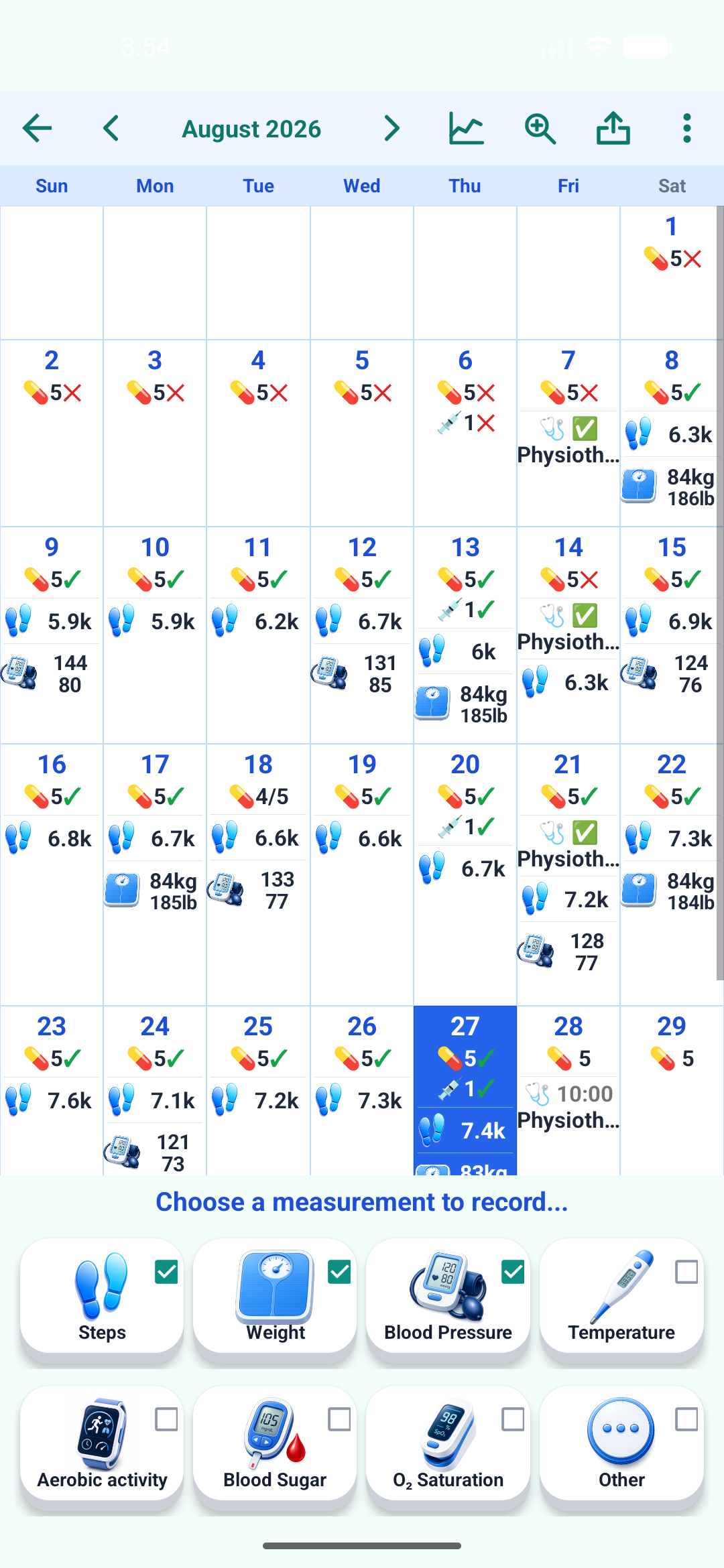
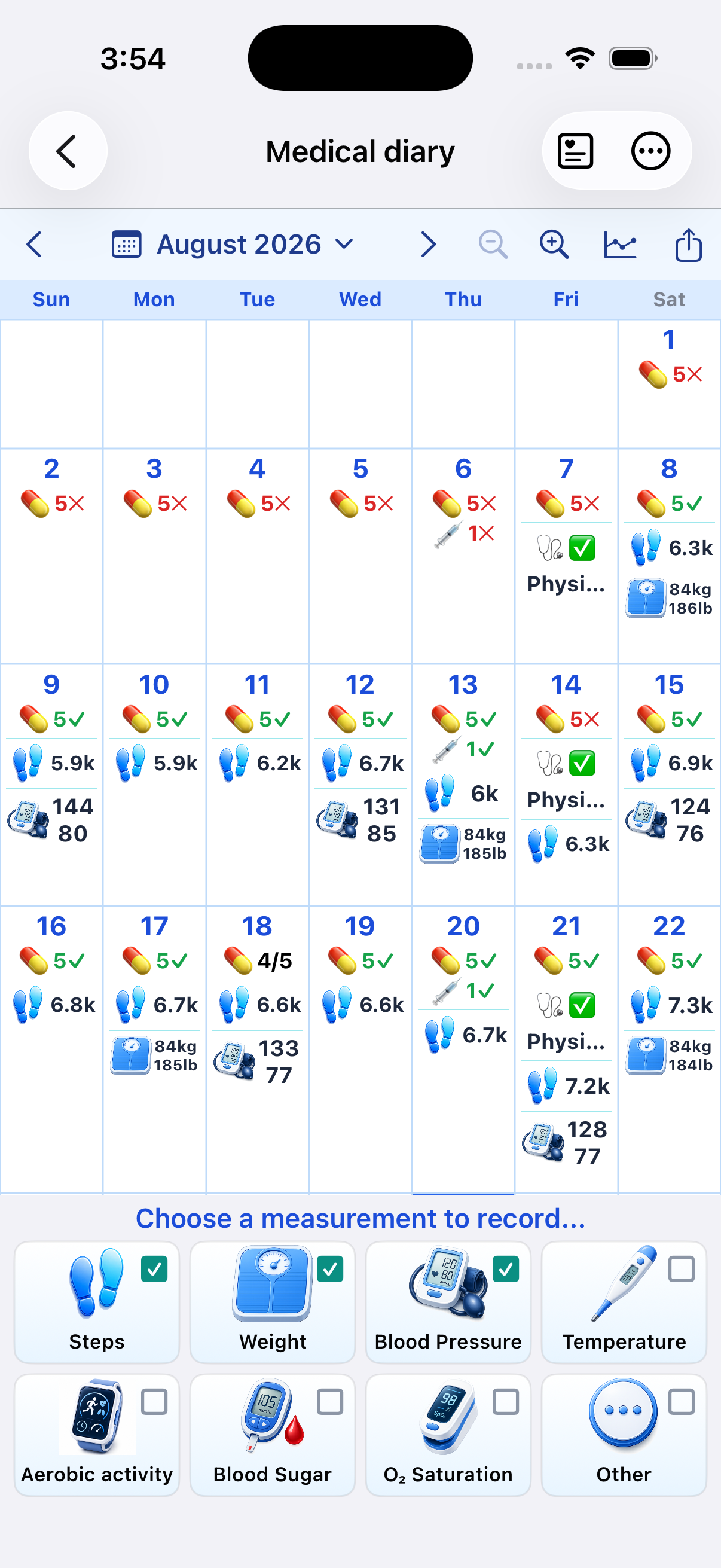
Tap a medication or care event in the diary to open Care tracker for that date. A selected row expands when needed without changing the width of the seven day columns.
6. Filter, chart, export, and print
- Use the small toggles beside measurement icons to show or hide categories. Medication records remain visible.
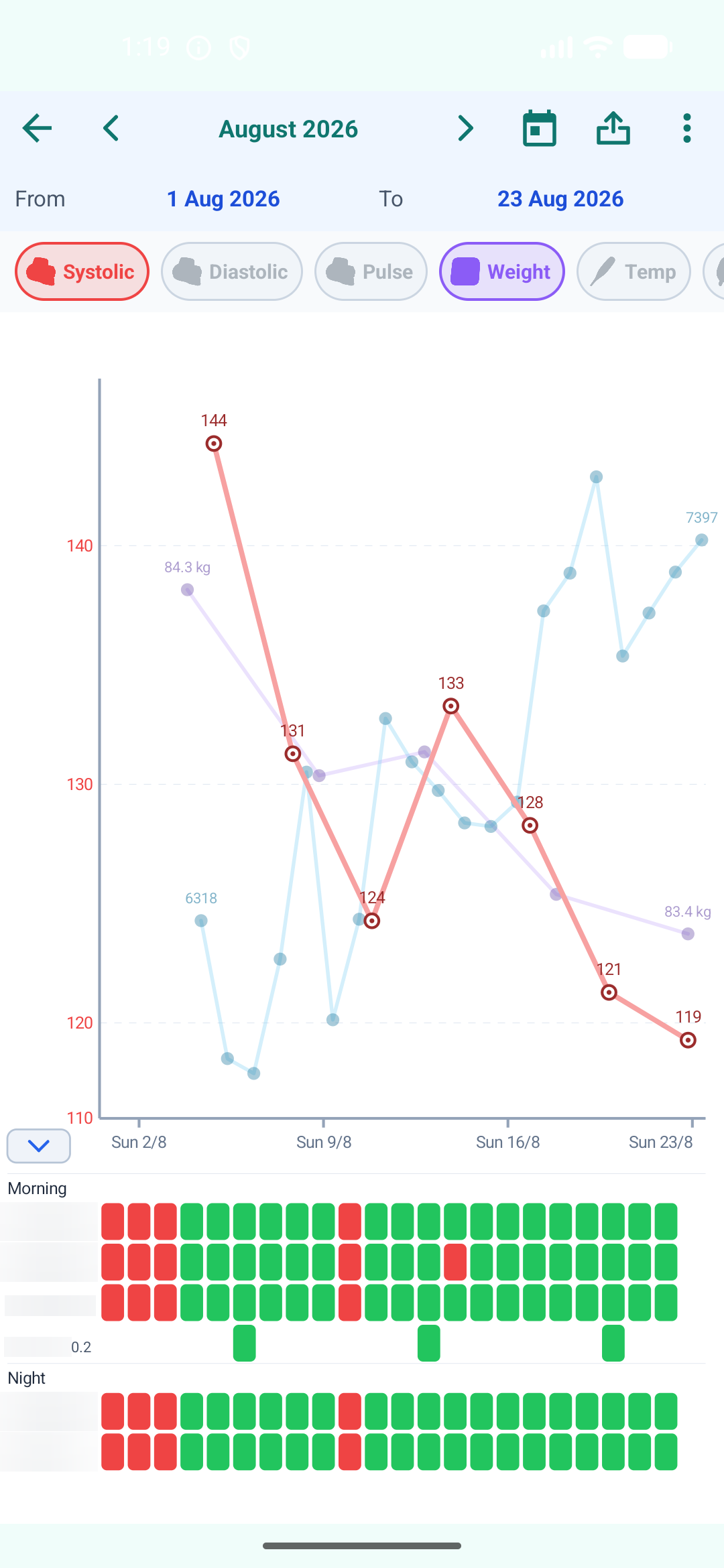
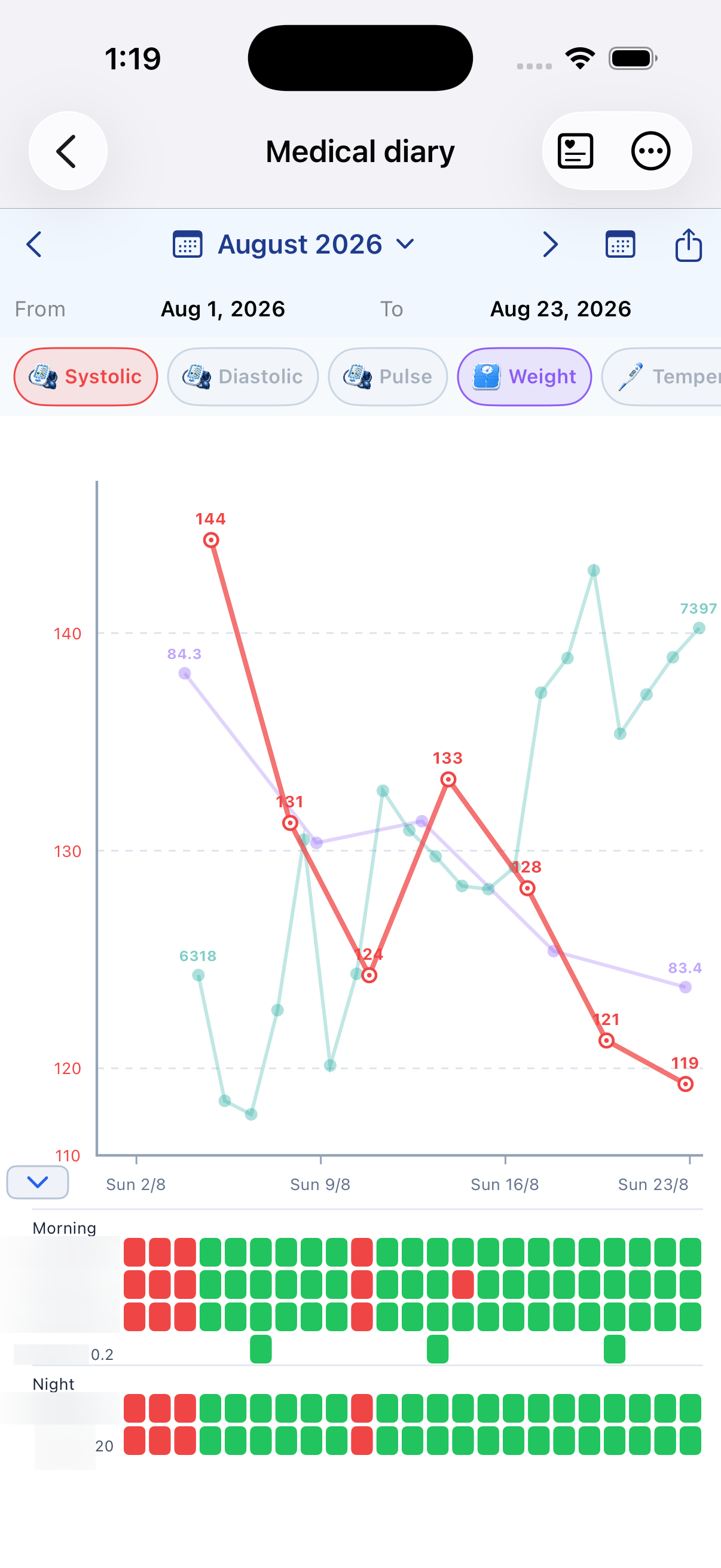
- Switch to chart view to compare selected measurements with medication tracking. Medication boxes align with their dates.
- In chart view, the chart button becomes a calendar button so one control switches between the two views.
- Calendar PDF export includes the whole selected month, medication and care records, status symbols, measurements, a title, and a legend. Chart PDF export also includes a title and legend.
7. Show the diary on a computer
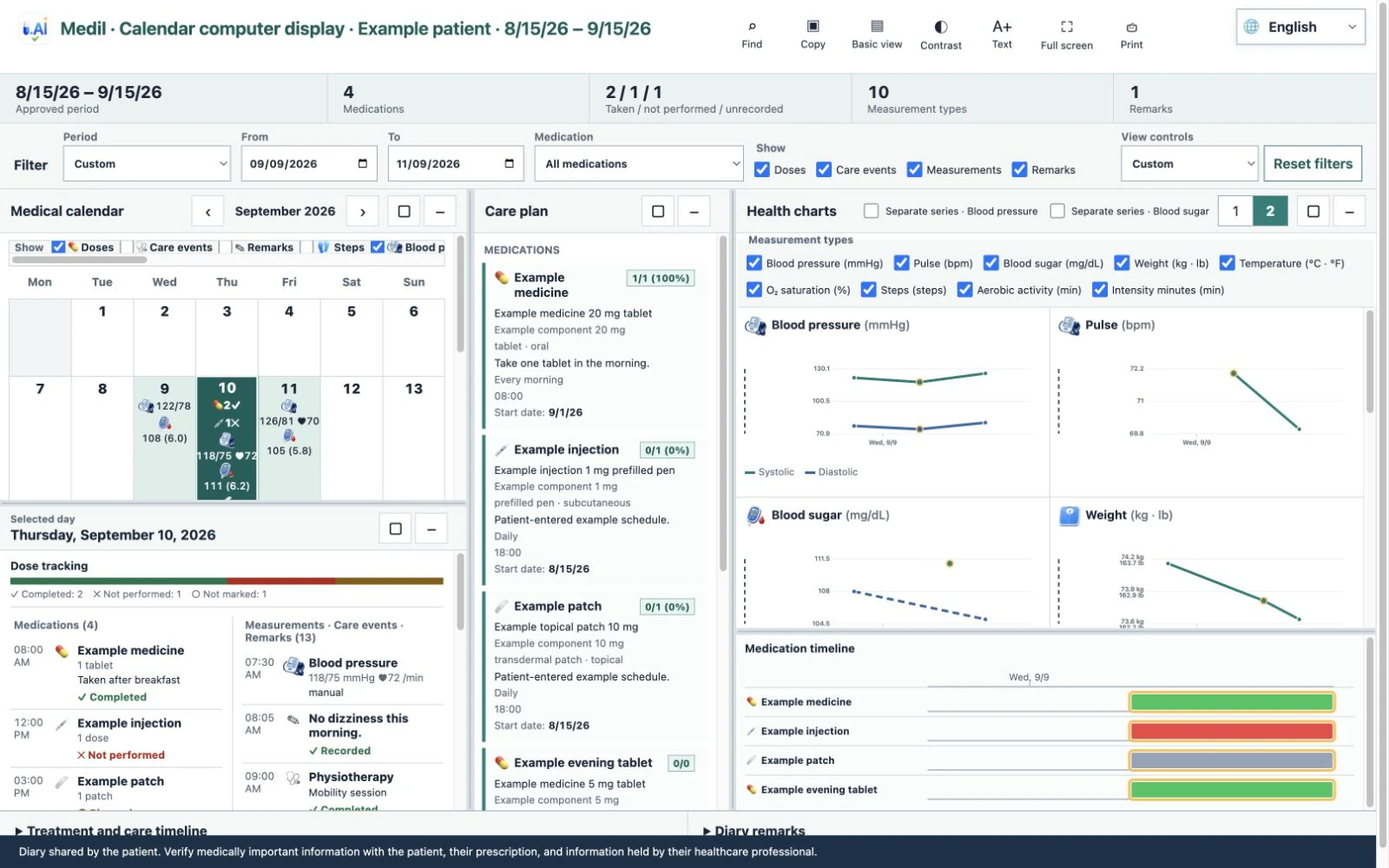
Calendar computer display brings the period you choose onto a larger screen for a visit. The medical calendar, selected-day details, Care plan, measurement charts, and medication timeline stay together as you review the record.
- On the computer, open view.medil.ai.
- In Medil AI on your phone, choose a diary period, then scan the browser QR code or enter its eight-character code.
- Approve the request on your phone. Enter the four-digit verification number shown there into the computer browser.
Available with Medil AI+ or an eligible free trial.
End-to-end checklist
- Verify each prescribed product, strength, dosage form, and active ingredient.
- Enter the amount, dates, frequency, weekdays, and times exactly as prescribed.
- Turn on Notify me and review the copied notification settings.
- Optionally add repeating or one-time care events.
- When a reminder arrives, record each medication and care event in Care tracker.
- Review the day in the medical diary and export the selected history when useful.
Where to make a change
- Prescription or future schedule: My medications or Care plan.
- One recorded occurrence: Care tracker on that date.
- Reminder sound or repeats: Notification options in the time slot.
- History: medical diary; tap an entry to return to its tracker date.